
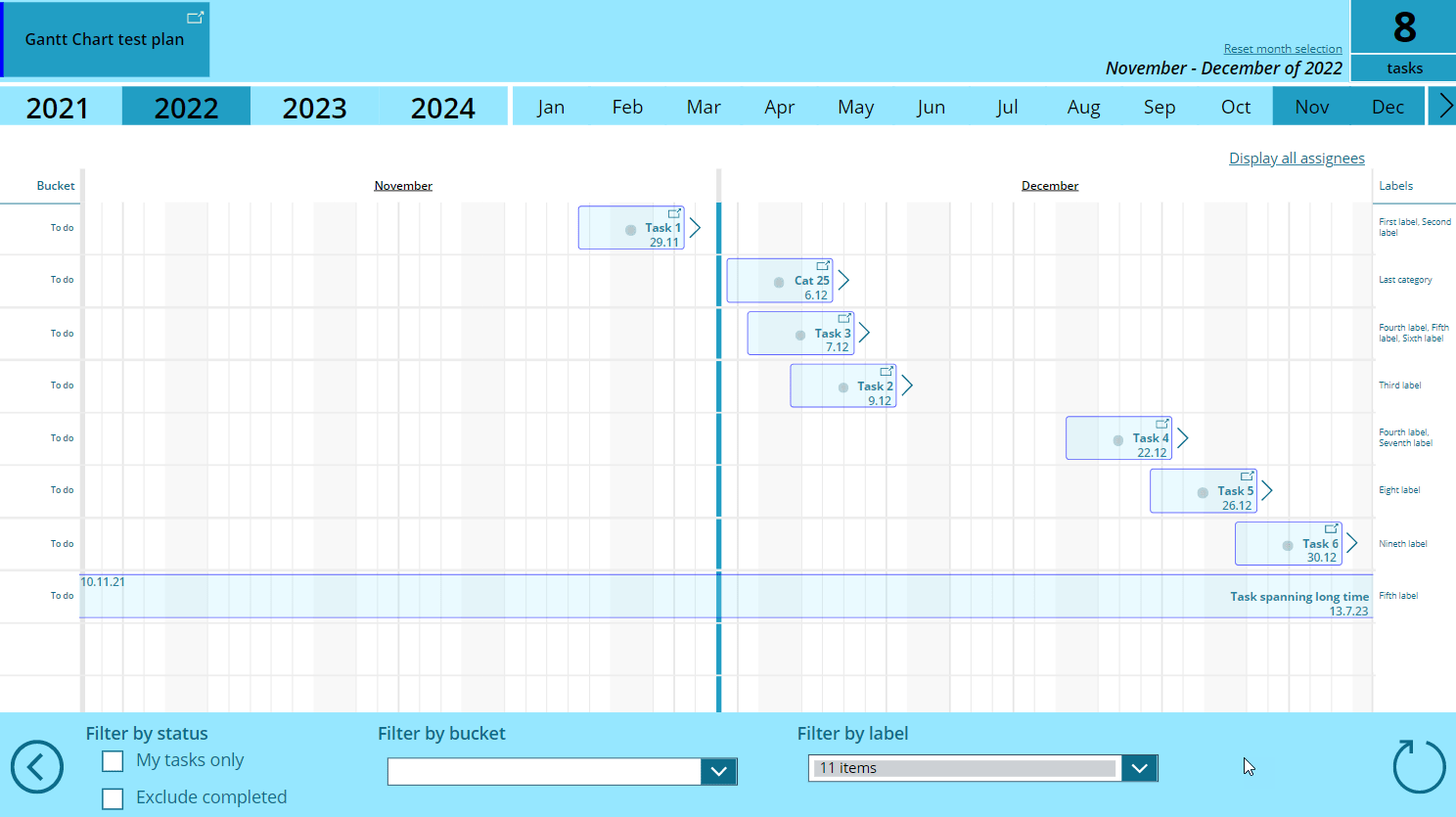
Phew, it’s been a while since I’ve last touched my popular Planner Gantt Chart Power Apps with maker’s studio. It was a high time to do so. In this blog post I’ll explain what I did.
You can download the latest version from my GitHub repository.
Naming changes
Categories are now called labels following the naming convention Planner UI uses.

Support for 25 labels!
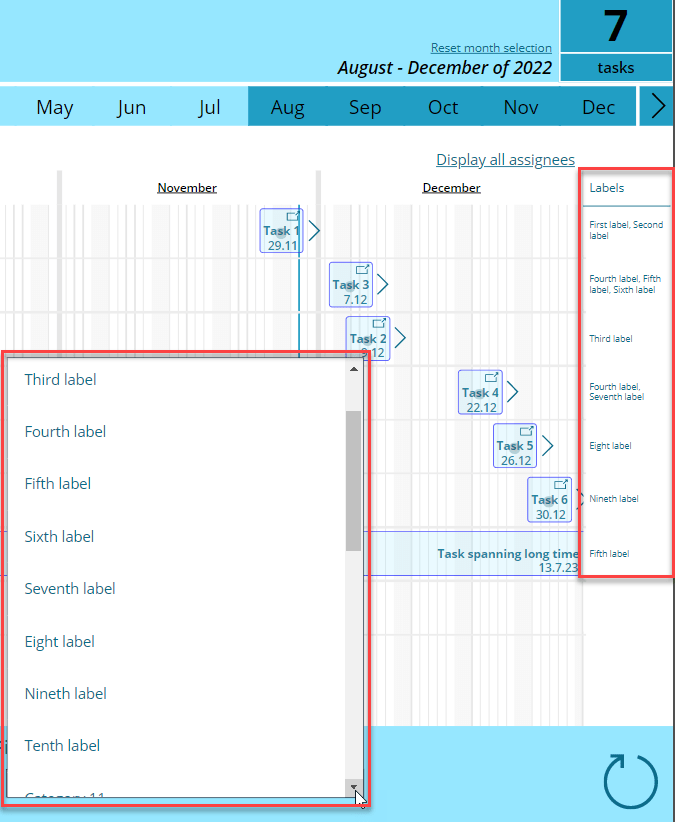
This is a long-awaited feature and requested by multiple users. Earlier version of the app only supported six labels, but that has now been changed to 25 – the same maximum number of labels that is supported by Planner UI. I also changed the filter control, because the old UI would have not cut it with 25 labels. The new filter is combobox control as with bucket filter – only this control supports multiple selections.

Possibility to view user’s all tasks over all available plans
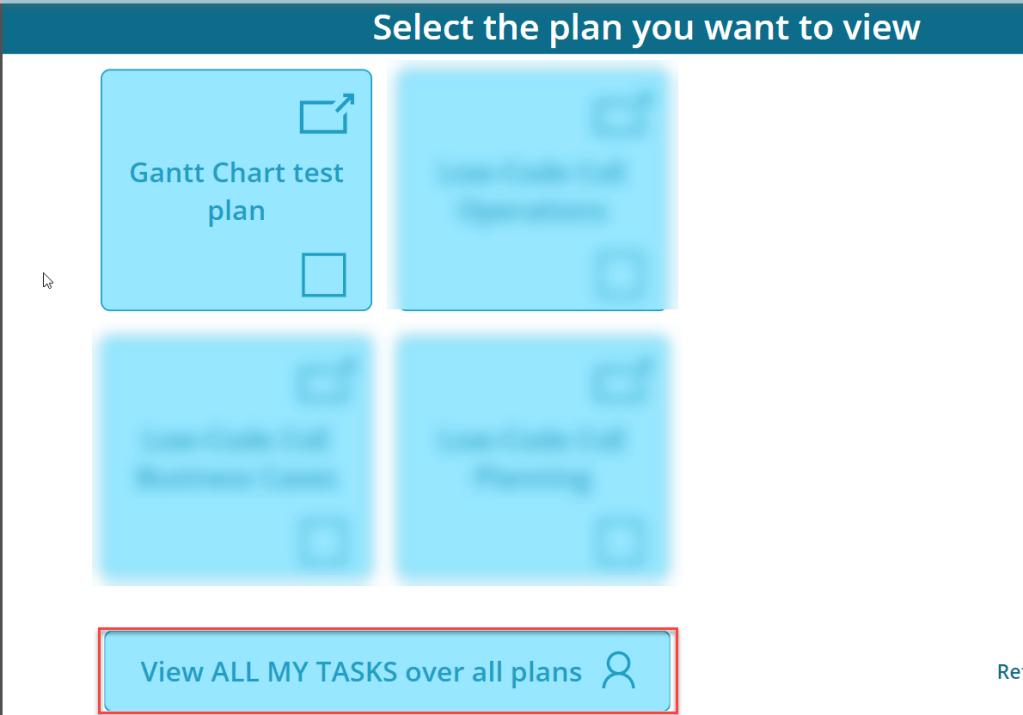
Due to the existing List my tasks method in the Planner connector it was possible to implement a totally new feature. You can use View ALL MY TASKS over all plans button on the start screen to access this feature.
Instead of showing tasks from selected plan(s), the Gantt chart displays all the tasks that are assigned to the user.
NOTE: Adding a new task in this mode does not work since the Plan dropdown box is empty. This will be an easy fix at a later time.
Bug fixing some start and end date handling
There were some problems with long lasting tasks showing wrong start and end dates. This is now fixed.
Small but handy addition to month selector
You can now use little angle bracket next to the month selector to jump over to the next year. This not only changes the selected year, but also changes the month range to start at the beginning of the next year. It also respects the range length you have selected. Like in the below pictures I have October – December 2022 selected at first. After clicking on the new button, the selected months are January – March 2023.
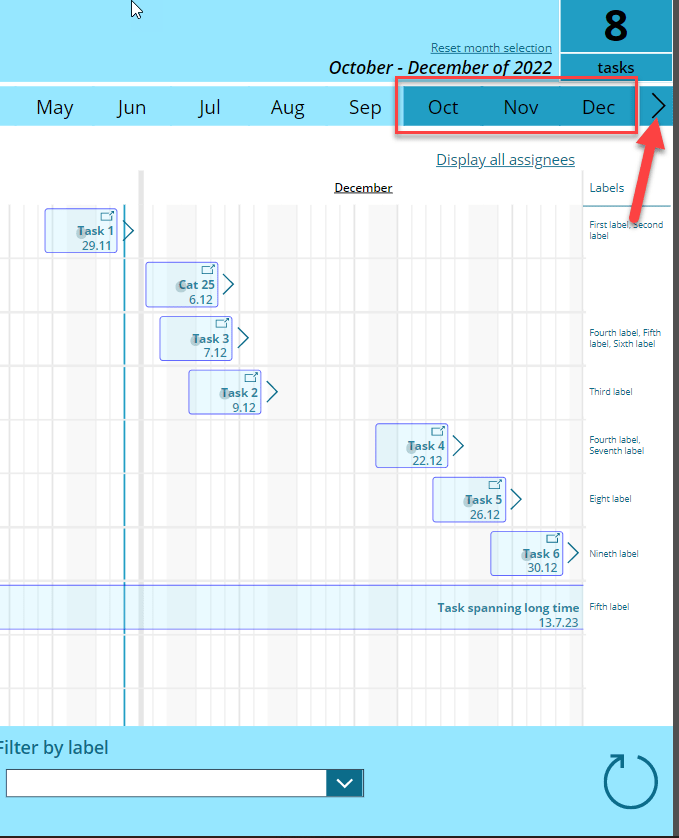
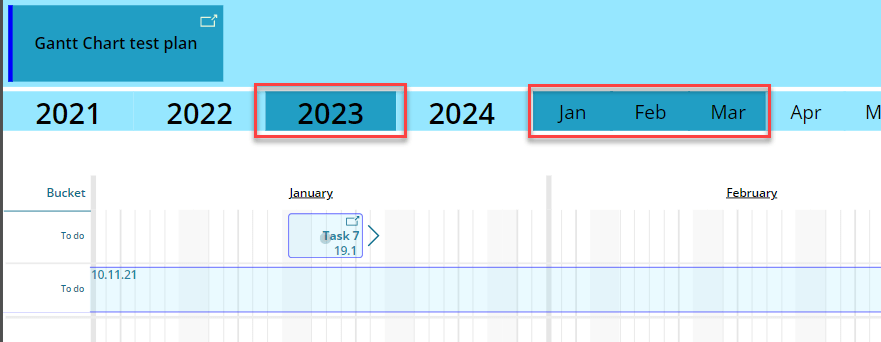
And remember, you can always use the Reset month selection to reset the view to the default range 😉

 terhoantila.com
Is it possible to show December 2022 and January 2023 at the same time?
LikeLike
Unfortunately that is not currently possible. It would be a good feature though, but I won’t have time to implement it for this upcoming turn of the year 😅
LikeLike
Thanks for letting me know! Looking forward to future releases then 🙂
LikeLike
How do I add emoji icons to tasks originally created on Microsoft Planner?
LikeLike
Hello Wayne. Unfortunately editing tasks via the app is not yet possible. If you want to add an emoji to an existing task, you need to open task in Planner and prefix task title with an emoji of your liking 😃
LikeLiked by 1 person
Thank you for sharing such a wonderful work. I’m having trouble with Teams cooperation not going well. I get a message that a manifest version is required.Is there any way to fix this?
LikeLike
Hi TIM, please take a look at this blog post: https://terhoantila.com/2021/05/21/surfacing-power-apps-in-teams-and-introducing-yet-another-cool-planner-gantt-chart-feature/
LikeLike
Would it be possible to use this app as commercial use? I am thinking to use this app for our team of our company in order to improve task management time.
LikeLike
Sure 😃
LikeLike
Thank you for your prompt reply.
Could you tell me the latest version number for this app?
LikeLike
20230124
LikeLike
This is a great app and we have started using it with our team.
One question: Is there anyway to exclude parameters on the default view such as Labels or Categories for internal tasks that we don’t want general onlookers to see?
LikeLike
Unfortunately currently no 🙁
LikeLike
This is a great app and we have started using it within our team and stakeholders.
One question: Is there a way to make the default view exclude specific tasks based on parameters such as Buckets or Labels? We have sensitive internal tasks in our plan that we don’t want general onlookers to see.
LikeLike
Unfortunately currently there no way to do this.
LikeLike
Good Day,
thanks for this great app!
Is it possible to show the individual days underneath the months? (Mo-Fr)
LikeLike
Hi Tizian,
Unfortunately that is not currently possible, but creating such functionality should not be technically difficult. However, I’m wondering how that would look like when user has multiple months selected – single day columns don’t have enough width to display weekdays…
LikeLike
Hi Terho,
sure, that would look a bit crowded if you implemend that function in long-term. In our case we are using this app for short/mid-term capacity-planing in our company. In the short term it would help us (and i think many others) a lot if you had the oppurtunity to show the individual days at least over a two- or three-month period. Maybe it is possible to implemend the days for a two/three month period? So that you have the possibility to plan your capacity in short term more accurate.
Looking forward to your answer and best regards from Germany!
Tizian
LikeLike
The month label could refer to a column spanning days indicated as M, T, W, T, F, S, S, where weekends could be highlighted as usual.
LikeLike
I think it’s a good idea to display weekdays (or abbreviations) in the chart if only e.g. one or two months are selected 👍 Stay tuned!
LikeLiked by 1 person
This is now implemented and you can go ahead and download the latest version of the app 👉 https://github.com/TerhoAntila/planner-gantt-chart
LikeLike
Hi Terho,
Thanks a lot for your advice.
With the method you taught me, first of all, I was able to add it to Teams.
So far, I have tried using the powerapps development environment, imported it to dateverse for Teams, and tried to move it to the production environment, but I got the following error message and I’m in trouble.
#########################
Schema validation has failed. Validation for field `Bucketld`,on entity `Task`has failed:The specified identifier is invalid.
The solution file is invalid.The compressed file must contain the following files at its root: solution.xml, customization.xml, and [Content_Types].xml.Customization files exported from previous versions of Microsoft Dynamics 365 are not supported.
##########################
Is there any good solution? Any help would be appreciated as I would like to get some use out of this really great app. thank you.
Is there any good way?
LikeLike
Looks like you are trying to import the app as a solution in maker portal. You should import it as a Power Apps app in maker portal -> Apps (not Solutions)
LikeLike
Hi Terho,
Thank you for your advice. For amateurs, this is a difficult task. When adding Teams as a solution from the Maker portal, an error message stating that the app cannot be found appears after transitioning to Teams, and it does not go well. , I tried to add it to Teams as an app, but an error message appeared saying that the manifest version was required and the manifest could not be parsed. I’m having trouble getting it to work. , https://learn.microsoft.com/ja-jp/microsoftteams/platform/resources/schema/manifest-schema
LikeLike
I would recommend skipping the manual schema creation and using Add to Teams functionality. Steps:
1. Go to maker portal -> Apps
2. Select Planner Gantt Chart
3. Choose Add to Teams from the toolbar
4. Either click on “Add to Teams” (the simplest) or “Download app” and proceed as instructed
Hopefully this helps 🙂 At least I was able to add the Gantt Chart as Teams tab by following the steps above…
LikeLike
Hi Terho,
Thank you very much for your sincere and persistent advice. Thanks to you, we were finally able to work with Teams. It’s like a dream. Thank you so much for this wonderful app. By the way, sorry, I should have asked you first, but is it possible to use it commercially? I would like to use it for task management internally. thank you.
LikeLike
The app is published under MIT license, so you can do pretty much anything with it (including using it internally in your company) ☺
LikeLike
Hi Terho,
thank you for your reply. I would like to use it internally. thank you.
LikeLike
I love this app! It would be great if I could have my pans in a list (even alphabetics?) on the title page… as i have a LOT. I have template and, as the oldest files they are always the first (don’t need to monitor them at all). Thanks for the amazing work.
LikeLiked by 1 person
Hi Terho,
I just started using this app and I think it is great. Thanks for your efforts to create it!
I noticed that if I rename one of my Planner tabs, the updated name does not translate into the Gantt dashboard tile. Instead the Gantt tile still shows the old name. Do you know how to correct this?
Many thanks!
Andrew
LikeLike
Hi Andrew,
I’m glad you like the app 😃 I haven’t encountered that behavior earlier – then again I’m not sure I have ever renamed my plans..
Perhaps I’m using some internal name of the plan in my app that doesn’t change if you change the plan name. Maybe there is some sort of display name available as well via the API. Don’t know, have to check..
LikeLike
Terho,
I think I found the answer. If I change the name of the Planner tab in Teams it does not translate to the Gantt, but if I change the name of the Planner using the web-based application it does update properly in the Gantt. All good now!
Thanks!
Andrew
LikeLiked by 1 person
Hello, thank you so much for this wonderful app. I just encountered problem when trying to modify the color theme… so when I changed the color as following (for blue): Dark: RGBA(29, 84, 130, 1), LighterDark: RGBA(168, 195, 218, 1), Light: RGBA(132, 170, 200, 1), TaskBackground: RGBA(150, 231, 255, .2) and run the app, on the srCPlan screen, the btnPlan appears to be black for whatever reason (although in the app you can see it is set to Theme.Color.Light) and the same problem with the other thngs on this screen. The srcGanett screen appears to be normal which is weird! Wondering the reason for this?
Thank you!
LikeLike
Hi, that typically happens if you make changes to App.OnStart and you don’t apply your changes. You can right-click the App and choose Run OnStart or similar..
LikeLike
Is there a way to assign a task to a person within the app?
Also, is there a way to create new a bucket or plan within the app?
LikeLike
Unfortunately all that needs to be done in Planner.
LikeLike
Hey there,
very great to build such a thing and make it available for everyone. I have just one problem and I am not sure what I should have done differently. When I import the app into Power Apps, all squares on the start page are black. When I use the app, I see the name of the plan just, when I hover over the square. And the refresh button doesn’t work, so I can just choose from the first 8 Plans? I have some more, how do I choose otherwise which one I would like to see?
Thank you so much!
LikeLike
Sorry, I’ve missed this message. Are you using the latest version of the app from my GitHub repository?
LikeLike
See below 🙂 Wasnt sure if my comment was gone lost.
LikeLike
Hi Terhoa,
as far as I’ve seen it it looks great. My problem ist, when I import the app and open it, the buckets with the names of the plans are black and the text is only white when I am hovering about it. Im not sure about it, because when I open the PowerFX OnStart it’s not the same as in the article where you say how to use your own colors and when I change it with the lines from the article it doesn’t work. Do you have any idea what happened?
I tested in two different environments and got the same problem.
LikeLike
Hi Simon,
How does it look when you play the app without opening it in canvas studio?
LikeLike
Thanks for your quick response 🙂
Same thing
Installed latest version from github, yes, installed as Readme told me to and now I’m not sure what happened.
I’m no IT professional so I’m not really good in reading code and change it.
LikeLike
I just tried installing the app in a fresh environment and it’s working properly. Perhaps this is a browser issue.. what browser are you using? I have tested it with Edge and Chrome.
LikeLike
I tried Chrome and Firefox. Maybe I’ll test another device, just for making it sure. Thanks for checking it.
LikeLike
I had the same problem. The solution to the issue is described here. 🙂
https://powerusers.microsoft.com/t5/Building-Power-Apps/Component-Fill-Not-Changing-With-The-Variables/m-p/2290416#M572958
LikeLike
Great finding 🙏
LikeLike
Thank you! Will try later 🙂
LikeLike
Thank you, it worked 🙂
LikeLike
New version of the app is now available with “Theme” renamed to “GanttTheme”. https://github.com/TerhoAntila/planner-gantt-chart
LikeLike
Hi,
this is great! I was wondering if you were able to add task dependencies as you mentioned in your 2021 video you would maybe try to get it done (I didn’t seem to find it in your pages). If not it’s not a problem, as I was just wondering.
Cheers and your contribution to us newbies powerapp users is immensely appreciated.
LikeLike
Hi, I’m glad you like the app. Unfortunately I never got around implementing task dependencies. Perhaps some day..
LikeLike